Keyboard keys – Explain Features with Images
Published: 3 Apr 2026
Typing becomes easier when you understand each keyboard button. If you don’t know what these buttons do, you may feel confused or press the wrong key while typing. Learning about keyboard keys can help you use your computer better.
In this guide, you will learn about different types of keyboard keys and their functions in a simple way. Each computer keyboard button has a special job, and knowing them will help you type faster and work more easily. To learn more about the different kinds of keyboards we use, check out our Types of Keyboard guide.
What Are Keyboard Keys?
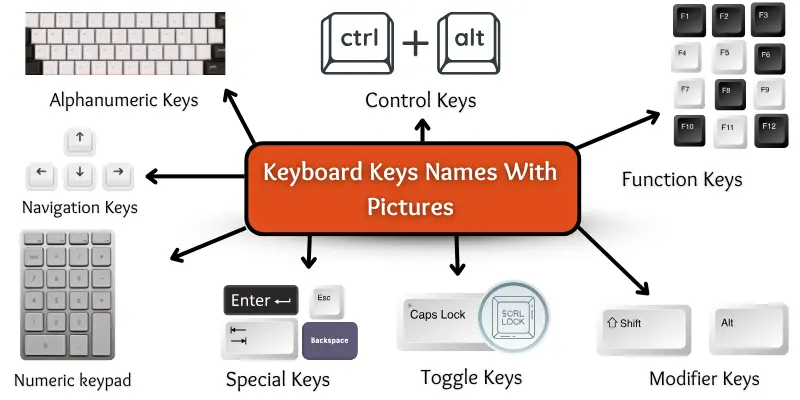
Keyboard keys are buttons on a computer keyboard that you press to type letters, numbers, and symbols. Each key has a specific function, such as writing text, giving commands, or controlling actions on the computer.
Keyboard Keys Names with Pictures
Here is a list of all the keys on a computer.
- Alphanumeric Keys
- Function Keys
- Control Keys
- Navigation Keys
- Numeric Keypad
- Special Keys
- Modifier Keys
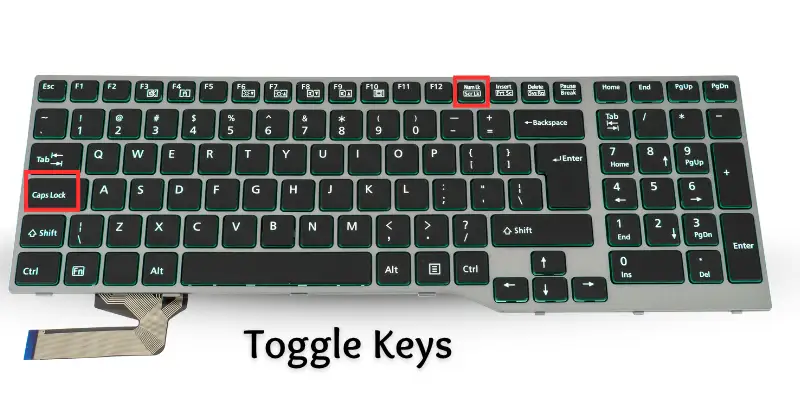
- Toggle Keys
Let’s explore the parts of keyboard computer in detail.
1. Alphanumeric Keys
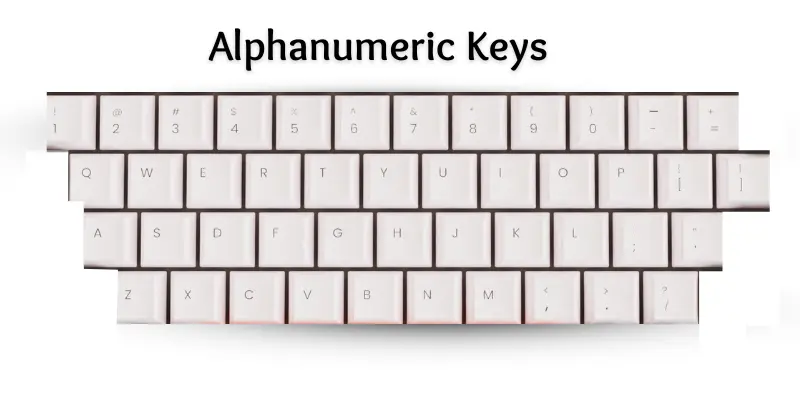
These are the most common keys on the keyboard. They include all the letters from A to Z and numbers from 0 to 9. Along with these, they have symbols like @, #, $, and %. You use these keys to write words, numbers, and special signs.
Functions of Alphanumeric Keys
Alphanumeric keys are used for typing letters, numbers, and symbols.
- Type letters (A to Z)
- Type numbers (0 to 9)
- Enter symbols like @, #, $, %
- Write words and sentences.
- Use for typing passwords and codes.
2. Function Keys
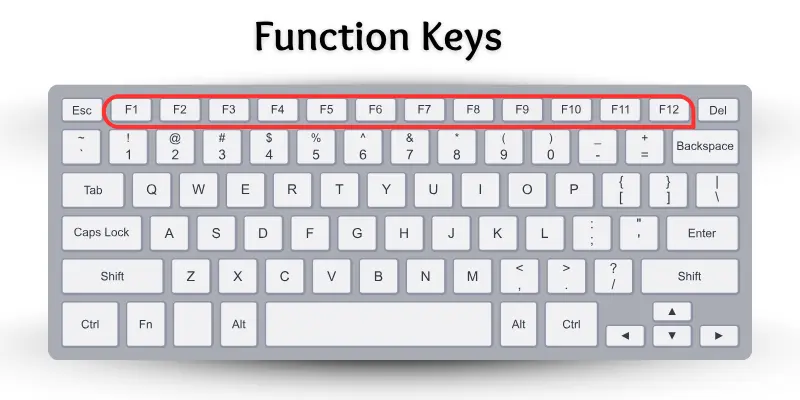
These are special keys on the top row of the keyboard. They are named F1 to F12. These keys help you do tasks faster. For example, F1 often opens help, and F5 refreshes the page. You press them to control your computer easily.
Uses of Function Keys
These keys are used for quick actions in computer tasks.
- F1: Opens help menu
- F2: Rename selected file or folder
- F3: Open search box
- F4: Close active window or address bar in browsers
- F5: Refresh or reload the page
- F6: It helps you jump to the address bar when using a web browser.
- F7: It checks your spelling and grammar in some writing programs.
- F8: It lets you open the startup menu when turning on Windows.
- F9: It updates or refreshes your document in Microsoft Word.
- F10: It shows the menu bar in many software programs.
- F11: Toggle full-screen mode
- F12: Open the “Save As” dialogue in Microsoft Word
3. Control Keys
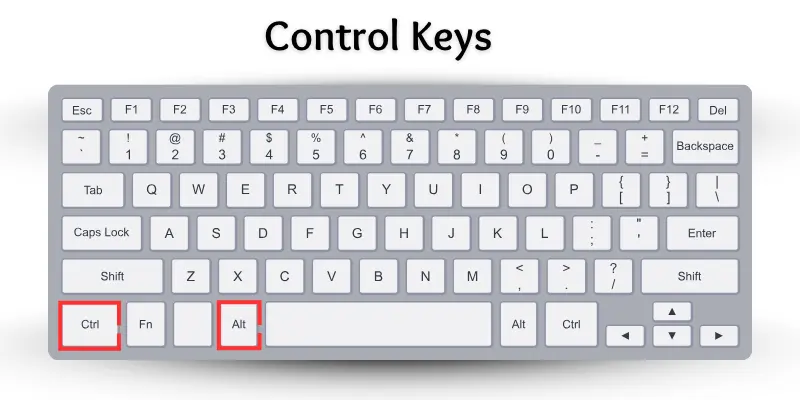
Control keys help you control the computer. You use them in combination with other keys to perform special actions. Examples are the Ctrl, Alt, and Esc keys. These keys make your work faster and easier.
Uses of Control Keys:
Here are some uses of control keys.
- Ctrl: Use with other keys for shortcuts (like Ctrl + C to copy)
- Alt: Use to change or alternate command
- Windows Key: Open the Start menu or do quick actions
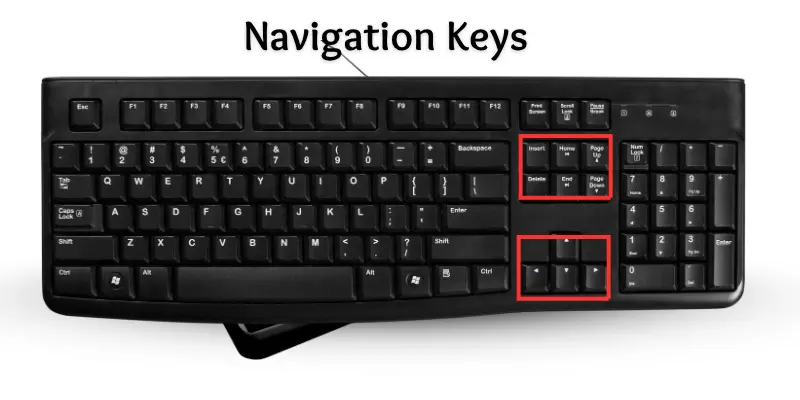
4. Navigation Keys
Navigation keys help you move the cursor or screen on your computer. They include arrow keys and keys like Home, End, Page Up, and Page Down. You can use these keys to navigate to different areas on your screen or within documents.
Functions of Navigation keys:
Here are some functions of navigation keys.
- Up Arrow: Moves the cursor up.
- Down Arrow: Moves the cursor down.
- Left Arrow: Moves the cursor left.
- Right Arrow: Moves the cursor right.
- Home: Moves to the start of the line.
- End: Moves to the end of the line.
- Page Up: Scrolls the screen up one page.
- Page Down: Scrolls the screen down one page.
- Insert: Changes typing mode (insert or overwrite).
- Delete: Deletes the character ahead of the cursor.
5. Numeric Keypad
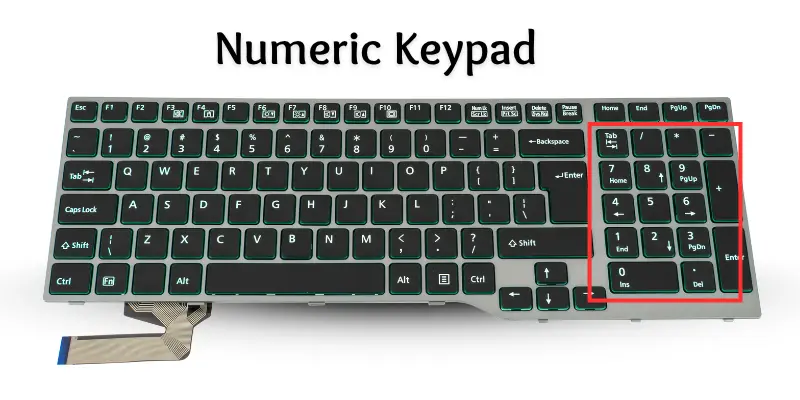
The numeric keypad is on the right side of the keyboard. It looks like a small calculator. You use it to type numbers quickly. It helps when you do math or enter data.
Functions of Numeric Keypad
This keypad is used for fast number typing and calculations.
- Type numbers fast.
- Add, subtract, multiply, and divide.
- Enter phone numbers.
- Use for data entry.
- Help with calculator operations.
6. Special Keys
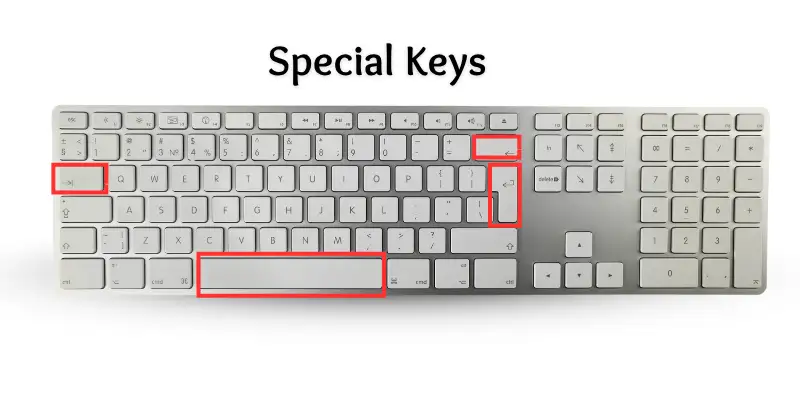
Special keys help you do different tasks on the computer. They do not type letters or numbers. But they control how you type. Keys like Enter, Backspace, and Spacebar are special keys. You use them to move, delete, or add spaces while typing.
Functions of Special Keys
These keys are used for typing control actions.
- Enter Key: It moves the cursor to a new line. It also starts a new task.
- Backspace Key: It deletes the letter before the cursor.
- Spacebar Key: It adds space between words.
- Tab Key: It moves the cursor forward by a few spaces
- Escape (Esc) Key: It stops a task or closes a menu.
7. Modifier Keys
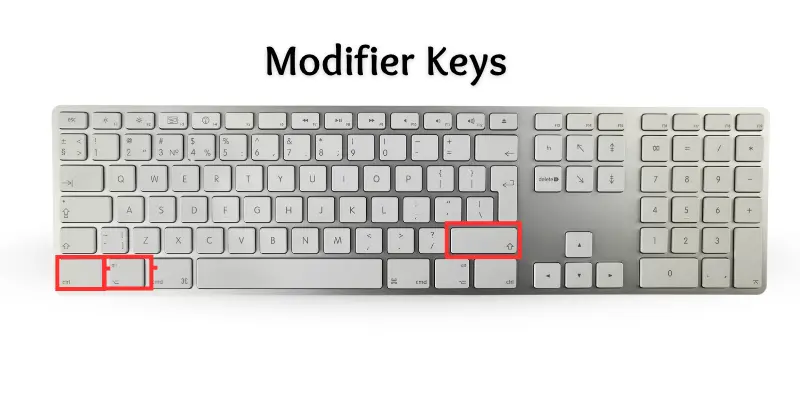
These keys change the meaning of other keys when you press them together. They help you type capital letters, symbols, or do shortcuts. Examples are:
Functions of modifier keys
It consists of some of these functions
- Shift Key: It makes letters capital and types symbols.
- Control (Ctrl) Key: It enables the performance of shortcuts and special commands.
- Alt Key: It helps switch windows and do shortcuts.
8. Toggle Keys
Toggle keys help you turn some keyboard features on or off. They work like switches. For example, Caps Lock turns capital letters on or off. Num Lock controls the number keys on the keypad. Scroll Lock helps in scrolling the screen.
Functions of toggle keys
Here are some uses of toggle keys.
- Caps Lock: Turns capital letters on or off.
- Num Lock: Enables or disables the number keypad.
- Scroll Lock: Changes screen scrolling behavior.
Conclusion
Now you understand the different keyboard keys and their functions. Each computer keyboard key has a specific function that helps you type and control your computer more easily. When you learn these keys, your typing becomes faster and more accurate.
Keep practicing every day so you can remember all the keys on a computer. The more you use them, the better you will understand the computer keyboard key functions and improve your typing skills.
FAQs about computer keyboard buttons
Here are beginner-friendly FAQs with short answers about the keyboard’s locks.
Keyboard keys are buttons you press to type letters, numbers, and symbols. They help you write and give commands to the computer. There are different types of keys, such as alphabet keys, number keys, function keys, and special keys.
Special keys help control typing and computer functions. Examples are Enter, Backspace, and Shift. They allow you to delete, start new lines, and type capital letters.
Toggle keys turn certain keyboard features on or off. Examples are Caps Lock, Num Lock, and Scroll Lock. They work like switches to control how your keyboard works.
The numeric keypad is a set of number keys on the right side of some keyboards. It helps you type numbers quickly. Num Lock must be on to use these keys.
Modifier keys change the action of other keys when pressed together. Common ones are Shift, Ctrl, and Alt. For example, holding Shift while typing a letter makes it capital.
Most keyboard keys work the same on any computer. However, some special keys may perform different functions depending on the computer or software. Always check your keyboard and settings.
Practice typing every day to get familiar with all keys. Use typing games or tutorials to improve your speed and accuracy. The more you use your keyboard, the easier it becomes.

I like the lesson and I want to learn more