Computer Motherboard
Published: 15 Mar 2026
Have you ever wondered how all the parts inside a computer connect and work together? The answer is the computer’s motherboard. Many beginners feel confused about this component because they cannot see how it works inside the system. However, the motherboard plays a central role in every computer.
Some beginners call the motherboard a madar board or simply a mobo computer. Both terms refer to the main board that connects all parts of a computer. In this guide, we will explain the motherboard of a computer in simple and easy words.
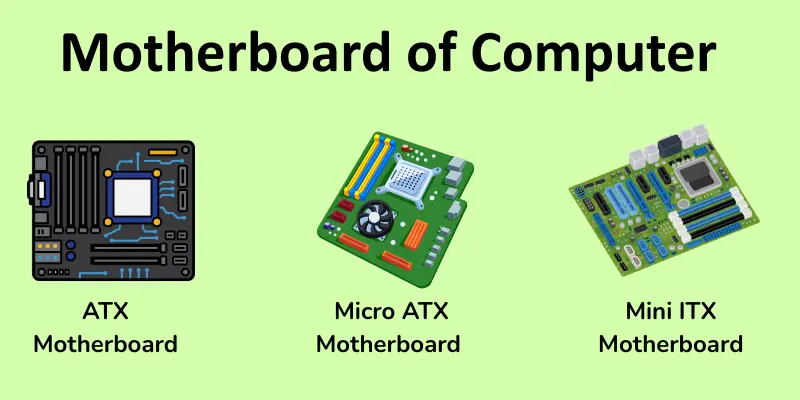
What is the motherboard of computer?
The motherboard is the main circuit board of a computer. It connects all the important hardware parts in the system. The CPU, RAM, storage devices, and other components attach to the motherboard. It allows these parts to communicate and work together smoothly. Because of this, the motherboard controls how the computer operates.
Functions of a Motherboard
The motherboard performs many important tasks in a computer system. It acts as the central platform that allows different hardware components to connect and communicate. Because of this, the computer runs smoothly and performs various operations.
Functions of a Motherboard:
- Connecting all computer components
- Supporting the CPU and memory
- Allowing communication between hardware devices
- Distributing power to different components
- Providing expansion slots for additional devices
- Managing data transfer between components
- Supporting storage devices
- Helping the computer start through BIOS or UEFI
Main Parts of a Motherboard
The motherboard has several important parts that help the computer work properly. Each part performs a specific function and connects different hardware components. Here are the main parts of the motherboard
- CPU Socket
- RAM Slots
- Chipset
- BIOS / UEFI Chip
- Power Connectors
- Expansion Slots
- SATA Ports
- USB Headers
- CMOS Battery
- Back Panel Connectors
1. CPU Socket
The CPU socket is the place where the processor is installed on the motherboard. It holds the CPU firmly and connects it to the system. Through this socket, the processor communicates with other components of the computer. Different motherboards support different CPU socket types. This is why the CPU must be compatible with the motherboard.
2. RAM Slots
RAM slots are the spaces where memory modules are inserted. These slots allow the computer to use RAM for temporary data storage. RAM helps the computer run programs quickly. A motherboard can have two, four, or more RAM slots. More slots allow users to increase memory capacity.
3. Chipset
The chipset is an important part that controls communication between different components. It manages how the CPU, RAM, and storage devices interact with each other. The chipset helps the motherboard handle data flow efficiently. It also decides what features the motherboard supports. Because of this, it plays a key role in system performance.
4. BIOS / UEFI Chip
The BIOS or UEFI chip stores the basic instructions needed to start the computer. When you turn on the computer, this chip checks the hardware components first. It makes sure everything is working properly. After that, it loads the operating system. Without BIOS or UEFI, the computer cannot start.
5. Power Connectors
Power connectors supply electricity to the motherboard and its components. They connect the motherboard to the power supply unit (PSU). These connectors provide power to the CPU, RAM, and other devices. Without power connectors, the motherboard cannot operate. They ensure that every part receives the required power.
6. Expansion Slots
Expansion slots allow users to add extra components to the computer. These slots are used to install devices like graphics cards, sound cards, and network cards. They help improve the computer’s performance and features. Expansion slots allow users to easily upgrade their systems.
7. SATA Ports
SATA ports connect storage devices to the motherboard. Hard drives and solid-state drives usually use these ports. Through SATA connections, the computer can store and access data. These ports allow fast communication between storage devices and the system. Most motherboards have several SATA ports.
8. USB Headers
USB headers are internal connectors on the motherboard. They connect the front USB ports of the computer case to the motherboard. This allows users to plug in devices such as flash drives, keyboards, and mice. USB headers make it easier to access USB ports from the front of the computer.
9. CMOS Battery
The CMOS battery is a small battery on the motherboard. It stores important system settings such as date and time. It also keeps BIOS settings saved even when the computer is turned off. If the CMOS battery becomes weak, the system may lose its settings. In that case, the battery needs to be replaced.
10. Back Panel Connectors
Back-panel connectors are located on the rear of the motherboard. They provide external ports for connecting devices. These ports include USB, audio, network, and display connectors. Users connect their keyboard, mouse, monitor, and other devices here. They make it easy to use external hardware with the computer.
Types of Motherboards
Motherboards come in different sizes and designs. Each type is made for a specific computer system. Some motherboards are large and powerful, while others are small and compact.
- ATX Motherboard
- Micro ATX Motherboard
- Mini ITX Motherboard
- Extended ATX Motherboard
1. ATX Motherboard
The ATX motherboard is the most common type used in desktop computers. It is larger in size and offers many expansion slots. Users can easily add graphics cards and other hardware. It also supports more RAM and storage devices. Because of this, it is popular in gaming and high-performance computers.
2. Micro ATX Motherboard
The Micro ATX motherboard is smaller than the standard ATX board. It is designed for compact desktop computers. It supports the CPU, RAM, and basic expansion cards. However, it has fewer slots compared to ATX boards. Many budget computers use this type of motherboard.
3. Mini ITX Motherboard
The Mini ITX motherboard is very small and compact. It is mainly used in small computer systems. This board usually has only one expansion slot. It still supports the main components like CPU and RAM. It is often used in small desktop PCs and home systems.
4. Extended ATX Motherboard
The Extended ATX motherboard is larger than the standard ATX board. It provides more space for extra components. It can support more RAM and multiple graphics cards. This type is often used in powerful workstations and servers. Because of its size, it needs a large computer case.
How to Identify a Motherboard
Identifying a motherboard is important if you want to know its model or compatibility. There are simple ways to check it without opening the computer too much. You can find details using software or by looking at the board itself.
Ways to Identify a Motherboard:
- Check the model number printed on the motherboard
- Look for brand names like ASUS, Gigabyte, or MSI on the board
- Use System Information in Windows
- Check the BIOS/UEFI screen during startup
- Look inside the case for stickers or labels on the motherboard
This helps you know the motherboard type, supported CPU, RAM, and expansion options.
How to Choose the Right Motherboard
Choosing the right motherboard is important for building or upgrading a computer. The motherboard must match your CPU, RAM, and other hardware. It also affects your system’s performance and future upgrades.
Tips to Choose the Right Motherboard:
- Check CPU compatibility with the motherboard socket
- Look at the number of RAM slots and the maximum supported memory
- Consider expansion slots for graphics cards or other devices
- Choose the right size: ATX, Micro ATX, Mini ITX
- Look for built-in features like USB ports, Wi-Fi, or audio support
- Ensure power connectors match your power supply unit
Choosing the right motherboard ensures your computer runs smoothly and can be upgraded in the future.
Advantages and Disadvantages of the Motherboard
The motherboard connects all parts of a computer and helps it work smoothly. It has many benefits but also a few limitations.
| Advantages |
|---|
|
| Disadvantages |
|---|
|
Conclusion
So guys, it’s time to finish up! In this article, we’ve covered the computer motherboard in detail. I recommend taking some time to look inside your own computer and identify the motherboard. Understanding it will help you use your computer better and make upgrades easier. If you found this guide helpful, don’t forget to share it with your friends and explore more computer tips on our website.
FAQs about the computer motherboard
A mobo computer is another name for the motherboard. It connects all computer parts like CPU, RAM, and storage. Without the mobo, the computer cannot work.
A computer motherboard is the main board that connects all components in a computer. It allows them to communicate and work together.
A madar board is another informal name for a motherboard. It is the main board that connects the CPU, RAM, storage, and other parts. Without a madar board, the computer cannot function.

- Be Respectful
- Stay Relevant
- Stay Positive
- True Feedback
- Encourage Discussion
- Avoid Spamming
- No Fake News
- Don't Copy-Paste
- No Personal Attacks
- Be Respectful
- Stay Relevant
- Stay Positive
- True Feedback
- Encourage Discussion
- Avoid Spamming
- No Fake News
- Don't Copy-Paste
- No Personal Attacks
