How many USB ports does a motherboard have
Published: 29 Jun 2026
Have you ever run out of USB ports while connecting your keyboard, mouse, external hard drive, webcam, or gaming accessories? If so, you may have wondered, “How many USB ports does a motherboard have?” The answer depends on the motherboard’s size, chipset, and design. Understanding USB port availability can help you choose the right motherboard and avoid future connectivity issues.
In this guide, you’ll learn how many USB ports a motherboard usually has, what affects the number of available ports, and how to add more USB ports if needed.
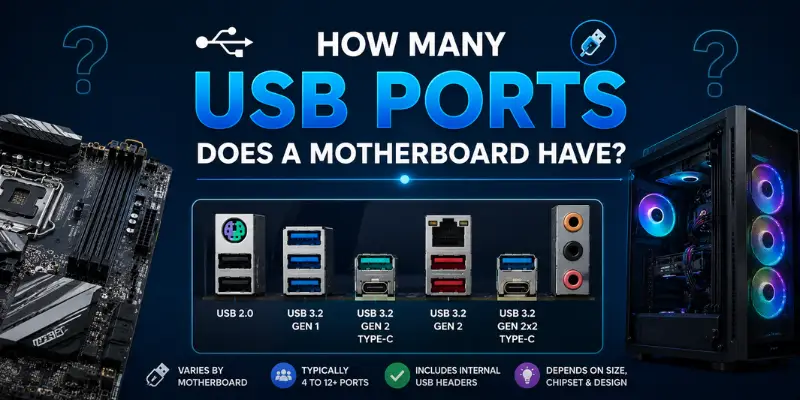
Quick Answer: How Many USB Ports Does a Motherboard Have?
Most modern motherboards have between 6 and 14 USB ports in total. Budget motherboards typically offer 6–8 USB ports, while gaming and workstation motherboards can provide 10–20 or more USB connections through a combination of rear I/O ports and internal USB headers.
Average USB Port Count by Motherboard Type
| Motherboard Type | Typical USB Ports |
| Mini-ITX | 6–8 |
| Micro-ATX | 8–12 |
| ATX | 10–14 |
| E-ATX / Workstation | 12–20+ |
The exact number varies depending on the motherboard model and its intended use.
What Is a USB Port on a Motherboard?
A USB (Universal Serial Bus) port is a connection interface built into the motherboard that allows devices to communicate with the computer. USB ports transfer data, deliver power, and support a wide range of peripherals.
Without USB ports, connecting modern devices to a computer would be much more difficult.
Why USB Ports Are Important
USB ports make it possible to connect:
- Keyboards
- Mice
- Printers
- External hard drives
- USB flash drives
- Smartphones
- Webcams
- Gaming controllers
- VR headsets
- Audio interfaces
The more devices you use, the more USB ports you may need.
How Many USB Ports Does a Motherboard Have?
The number of USB ports varies according to the motherboard’s category and price range.
Entry-Level Motherboards
Entry-level motherboards are designed for basic computing tasks and usually include fewer USB connections.
Typical USB Port Count:
- 4–6 rear USB ports
- 2–4 front USB ports
- Total: 6–8 USB ports
These boards are suitable for office work, web browsing, and general home use.
Mid-Range Motherboards
Mid-range motherboards provide a balanced combination of connectivity and affordability.
Typical USB Port Count:
- 6–8 rear USB ports
- 2–4 front USB ports
- Total: 8–12 USB ports
These motherboards are ideal for students, professionals, and casual gamers.
Gaming Motherboards
Gaming motherboards often include additional USB ports to support gaming peripherals and high-speed devices.
Typical USB Port Count:
- 8–10 rear USB ports
- 4–6 front USB ports
- Total: 10–16 USB ports
Many gaming motherboards also include USB-C ports and faster USB 3.2 connections.
Workstation Motherboards
Workstation motherboards are designed for professional users who rely on multiple peripherals and storage devices.
Typical USB Port Count:
- 10–12 rear USB ports
- 4–8 front USB ports
- Total: 12–20+ USB ports
These systems are commonly used for video editing, engineering, 3D design, and content creation.
USB Port Count by Motherboard Form Factor
The physical size of a motherboard significantly affects the number of USB ports it can support.
Mini-ITX Motherboards
Mini-ITX motherboards are compact and designed for small PC builds.
Typical USB Ports:
- 4–6 rear ports
- Limited internal headers
- Total: 6–8 ports
Because of space limitations, Mini-ITX boards usually have the fewest USB connections.
Micro-ATX Motherboards
Micro-ATX motherboards offer a good balance between size and connectivity.
Typical USB Ports:
- 6–8 rear ports
- Multiple internal headers
- Total: 8–12 ports
These boards are popular among mainstream PC builders.
ATX Motherboards
ATX motherboards provide more room for ports, headers, and expansion options.
Typical USB Ports:
- 8–10 rear ports
- Several internal USB headers
- Total: 10–14 ports
ATX boards are among the most popular choices for gaming and productivity systems.
E-ATX Motherboards
E-ATX motherboards are larger than standard ATX boards and offer maximum connectivity.
Typical USB Ports:
- 10–12 rear ports
- Multiple internal headers
- Total: 12–20+ ports
These boards are often used in workstations and high-end enthusiast systems
Types of USB Ports Found on Modern Motherboards
Not all USB ports are the same. Modern motherboards include different USB versions, each offering different speeds and features. Understanding these USB types can help you choose a motherboard that meets your performance needs.
USB 2.0 Ports
USB 2.0 is an older USB standard that is still found on many motherboards.
Key Features
- Maximum speed of 480 Mbps
- Suitable for keyboards and mice
- Lower power consumption
- Widely compatible with older devices
Common Uses
- Keyboard connections
- Mouse connections
- Printers
- Basic USB accessories
USB 3.2 Gen 1 Ports
USB 3.2 Gen 1 was previously known as USB 3.0.
Key Features
- Speeds up to 5 Gbps
- Faster file transfers
- Better performance than USB 2.0
Common Uses
- USB flash drives
- External hard drives
- Cameras
- Portable SSDs
USB 3.2 Gen 2 Ports
USB 3.2 Gen 2 provides even faster transfer speeds.
Key Features
- Speeds up to 10 Gbps
- Improved bandwidth
- Faster backups and data transfers
Common Uses
- High-speed storage devices
- Professional workflows
- Large file transfers
USB 3.2 Gen 2×2 Ports
This is one of the fastest USB standards available on modern consumer motherboards.
Key Features
- Speeds up to 20 Gbps
- Excellent for high-performance devices
- Supports demanding workloads
Common Uses
- External SSDs
- Video editing equipment
- Large data transfers
USB Type-C Ports
USB Type-C refers to the connector design rather than the speed standard.
Key Features
- Reversible connector
- Supports fast charging
- Compatible with multiple USB standards
- Increasingly common on modern motherboards
Common Uses
- Smartphones
- Laptops
- Tablets
- External SSDs
Rear USB Ports vs Front USB Ports
When counting USB ports on a motherboard, it’s important to understand the difference between rear and front USB ports.
Rear USB Ports
Rear USB ports are located directly on the motherboard’s rear I/O panel.
Advantages
- Direct motherboard connection
- Better reliability
- Faster performance
- Easier access for permanent devices
Common Devices Connected to Rear Ports
- Keyboard
- Mouse
- Printer
- External storage drives
- Network adapters
Front USB Ports
Front USB ports are located on the computer case and connect to the motherboard through internal USB headers.
Advantages
- Easy access
- Convenient for temporary devices
- Ideal for flash drives
Common Devices Connected to Front Ports
- USB flash drives
- Smartphones
- Portable SSDs
- Cameras
Which USB Ports Should You Use?
For devices that remain connected all the time, rear USB ports are usually the best option. For frequently connected devices, front USB ports offer greater convenience.
What Are Internal USB Headers?
Many people only count the USB ports visible on the back of the motherboard. However, modern motherboards also include internal USB headers.
These headers allow additional USB ports to be added through the computer case.
USB 2.0 Headers
USB 2.0 headers usually support two to four additional USB ports.
USB 3.0 Headers
USB 3.0 headers typically support two front-panel USB ports.
USB-C Headers
Modern motherboards may include dedicated USB-C headers for front-panel USB-C ports.
Do Internal USB Headers Count as USB Ports?
Yes. Internal USB headers increase the total number of USB ports that a motherboard can support.
For example:
- 8 rear USB ports
- 4 front-panel USB ports connected through headers
Total USB ports = 12
This is why motherboard manufacturers often advertise more USB support than what you can see on the rear I/O panel alone.
How to Check How Many USB Ports Your Motherboard Has
If you’re unsure about the number of USB ports available on your motherboard, there are several easy ways to find out.
Inspect the Rear I/O Panel
The quickest method is to look at the back of your computer. Count all visible USB ports on the motherboard’s rear I/O panel.
You may see:
- USB 2.0 ports
- USB 3.2 ports
- USB Type-C ports
This gives you the number of rear USB ports available for direct use.
Check the Motherboard Specifications
The motherboard’s specification sheet provides the most accurate information about USB connectivity.
Look for details such as:
- Number of rear USB ports
- Number of internal USB headers
- Supported USB versions
- USB Type-C availability
Visit the Manufacturer’s Website
Most motherboard manufacturers publish complete specifications online.
The product page usually lists:
- USB port count
- USB standards
- Internal header support
- Expansion options
Use System Information Tools
You can also use software tools to identify USB controllers and connected devices.
Popular options include:
- Device Manager
- System Information
- Hardware monitoring tools
Can You Add More USB Ports to a Motherboard?
Yes. If your motherboard does not provide enough USB ports, there are several ways to expand connectivity.
PCIe USB Expansion Cards
A PCIe USB expansion card installs into an available PCIe slot on the motherboard.
Benefits
- Adds multiple USB ports
- Supports high-speed USB standards
- Reliable performance
Best For
- Gamers
- Content creators
- Professional workstations
USB Hubs
A USB hub allows multiple devices to share a single USB port.
Benefits
- Affordable
- Easy to use
- No installation required
Best For
- Home users
- Students
- Office setups
Front Panel USB Expansion
Many PC cases include additional front USB ports that connect through internal motherboard headers.
This provides extra USB connections without requiring expansion cards.
How Many USB Devices Can a Motherboard Support?
Modern motherboards can support dozens or even hundreds of USB devices.
However, the actual limit depends on several factors.
USB Controller Limitations
The motherboard’s USB controller manages communication between devices and the computer.
More advanced controllers can handle more simultaneous connections.
Available Power
USB devices require power to operate.
High-power devices such as:
- External hard drives
- RGB accessories
- VR headsets
may require additional power sources.
Bandwidth Limitations
Even if many devices are connected, the total bandwidth is shared between them.
Large file transfers from multiple storage devices may reduce overall performance.
Conclusion
The number of USB ports on a motherboard can vary depending on its size, chipset, and intended use. Most modern motherboards provide enough USB connections for everyday devices, while gaming and workstation models offer additional ports for more demanding setups.
Before buying a motherboard, consider how many USB devices you currently use and whether you may need more ports in the future. Checking both the rear USB ports and internal USB headers will give you a clearer picture of the motherboard’s total connectivity.
By understanding USB port counts, USB types, and expansion options, you can choose a motherboard that meets your needs today and remains useful as your setup grows over time.
Frequently Asked Questions
Yes. You can add more USB ports using PCIe USB expansion cards, USB hubs, or internal USB headers.
High-end ATX and E-ATX workstation motherboards typically offer the highest number of USB ports.

- Be Respectful
- Stay Relevant
- Stay Positive
- True Feedback
- Encourage Discussion
- Avoid Spamming
- No Fake News
- Don't Copy-Paste
- No Personal Attacks
- Be Respectful
- Stay Relevant
- Stay Positive
- True Feedback
- Encourage Discussion
- Avoid Spamming
- No Fake News
- Don't Copy-Paste
- No Personal Attacks
