List of Computer Icons and Their Functions
Published: 12 May 2026
Computers use many small symbols called icons to help users open programs, manage files, connect to the internet, and control system settings more easily. These icons are designed to make computer navigation simple and user-friendly, especially for beginners and students learning to use a computer for the first time. From desktop icons like Recycle Bin and This PC to system icons like Wi-Fi, battery, and volume, every icon serves a specific purpose, helping users perform tasks quickly.
In this beginner-friendly guide, we will explore the complete list of computer icons and their functions, including desktop icons, toolbar icons, file icons, and system icons, explained in very easy English. Whether you are a student, teacher, or new computer user, this article will help you understand the meaning and use of the most common computer icons in daily life.
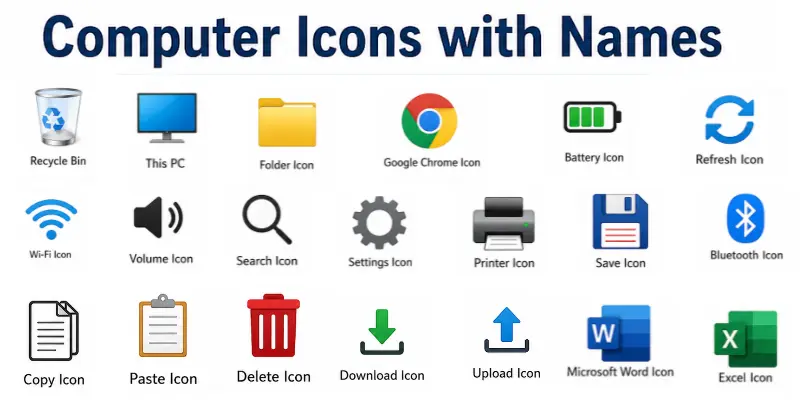
20 List of Computer Icons and Their Functions
Computer icons help users quickly access programs, files, folders, and system settings without typing commands. These small graphical symbols make computers easier to use, especially for beginners and students learning basic computer functions.
Computer icons name list
- Recycle Bin
- This PC
- Folder Icon
- Google Chrome Icon
- Wi-Fi Icon
- Battery Icon
- Volume Icon
- Search Icon
- Settings Icon
- Printer Icon
- Save Icon
- Copy Icon
- Paste Icon
- Delete Icon
- Download Icon
- Upload Icon
- Refresh Icon
- Bluetooth Icon
- Microsoft Word Icon
- Excel Icon
Let’s explore computer symbols and meanings in detail
1. Recycle Bin Icon and Function
The Recycle Bin icon is a common desktop icon that usually looks like a small trash bin or waste basket on the screen. It is used to temporarily hold deleted files before they are permanently removed from the computer.
Functions of the Recycle Bin Icon
- Stores deleted files and folders temporarily
- Allows users to restore accidentally deleted files
- Helps permanently delete files when emptied
- Keeps the system organized by managing deleted data
- Prevents immediate loss of important files
The Recycle Bin icon helps users manage deleted files safely and easily by giving them a chance to recover or permanently remove data when needed.
2. This PC Icon and Function
The This PC icon is a common system icon that usually appears on the desktop screen. It looks like a computer monitor or PC symbol. This icon represents the computer’s main storage area, where all drives, folders, and connected devices can be easily accessed.
Functions of This PC Icon
- Opens all computer drives, such as Local Disk (C:), D:, etc.
- Shows connected devices such as USB or external drives
- Helps users access files, folders, and system storage
- Provides quick access to downloads, documents, and desktop files
- Allows easy navigation of the computer system
The This PC icon is very important because it gives users a complete view of their computer storage and helps them manage files and devices easily.
3. Folder Icon and Function
The Folder icon is one of the most basic and commonly used icons in a computer. It usually looks like a small yellow file folder and is used to organize and store different types of files in one place on the computer.
Functions of Folder Icon
- Stores files and documents in an organized way
- Helps users group related files together
- Makes it easy to manage data on the computer
- Allows creating new folders for better organization
- Helps in quick access to important files
The Folder icon is very useful for keeping computer files organized and easy to find whenever needed.
4. Google Chrome Icon and Function
The Google Chrome icon is a popular application icon that represents the Chrome web browser. It usually looks like a colorful circle with red, green, yellow, and blue in the center. This icon is used to access the internet and browse websites.
Functions of Google Chrome Icon
- Opens the internet browser for web surfing
- Allows searching for information online
- Helps access websites, videos, and online tools
- Supports downloading files from the internet
- Enables login to emails and online accounts
The Google Chrome icon is essential for internet browsing and helps users connect to the online world quickly and easily.
5. Wi-Fi Icon and Function
The Wi-Fi icon is a system icon that typically shows curved signal bars on the screen. It shows the status of your internet connection and whether your device is connected to a wireless network.
Functions of Wi-Fi Icon
- Shows internet connection status
- Connects the computer to wireless networks
- Helps users join available Wi-Fi networks
- Indicates signal strength
- Alerts when the internet is disconnected
The Wi-Fi icon is important because it helps users stay connected to the internet for browsing, communication, and online work.
6. Battery Icon and Function
The Battery icon is a system indicator that typically appears as a small battery symbol on the screen. It shows how much power is left in a laptop or portable device.
Functions of Battery Icon
- Displays battery charge level
- Shows when the device is charging
- Alerts low battery status
- Helps manage power usage
- Indicates battery health status
The Battery icon helps manage device power and prevent sudden shutdowns.
7. Volume Icon and Function
The Volume icon is a system icon that usually looks like a speaker symbol. It controls the computer’s sound settings, including increasing or decreasing audio volume.
Functions of Volume Icon
- Adjusts the sound level up or down
- Mutes or unmutes the system sound
- Controls audio for videos and music
- Helps manage speaker or headphone output
- Provides quick sound settings access
The Volume icon is important for controlling audio easily while using a computer.
8. Search Icon and Function
The Search icon is usually shown as a magnifying glass symbol on the computer screen. It helps users quickly find files, apps, and information on the system or internet.
Functions of the Search Icon
- Finds files and folders on the computer
- Helps search for installed applications
- Allows quick access to system tools
- Searches information on the internet (in some systems)
- Saves time by locating items quickly
The Search icon makes it easy to find anything on the computer without manually browsing through files.
9. Settings Icon and Function
The Settings icon is a system icon that typically appears as a small gear or cogwheel on the screen. It is used to control and customize different parts of the computer system according to user needs.
Functions of Settings Icon
- Opens system settings and control panel
- Allows changing display, sound, and network settings
- Helps manage user accounts and security options
- Controls device and hardware settings
- Provides access to system personalization
The Settings icon is very important because it allows users to fully control and customize their computer system.
10. Printer Icon and Function
The Printer icon is an application or system icon that typically resembles a small printer icon. It is used to send documents or files for printing.
Functions of Printer Icon
- Sends documents to the printer for printing
- Allows print settings adjustment
- Supports printing images and files
- Helps manage print queue
- Provides quick printing access
The Printer icon is useful for quickly printing documents and images from the computer.
11. Save Icon and Function
The Save icon is a common tool icon that usually looks like a floppy disk symbol. It is used to store or save work on the computer.
Functions of the Save Icon
- Saves documents and files permanently
- Stores changes made in files
- Prevents data loss during work
- Updates existing saved files
- Helps keep work secure
The Save icon is essential for keeping your work safe and stored on the computer.
12. Copy Icon and Function
The Copy icon is an editing tool icon that is usually shown as two overlapping pages. It is used to duplicate selected text, images, or files.
Functions of Copy Icon
- Copies selected content
- Duplicates files or text without removing the original
- Helps transfer data within or between files
- Saves time in editing tasks
- Supports data sharing within applications
The Copy icon helps users duplicate content quickly without affecting the original data.
13. Paste Icon and Function
The Paste icon is an editing tool icon that usually looks like a clipboard symbol. It is used to insert copied or cut content into a new location.
Functions of Paste Icon
- Inserts copied content into files or folders
- Works with copy and cut commands
- Helps move data between documents
- Supports editing tasks
- Saves time in content placement
The Paste icon lets users easily paste copied data wherever needed.
14. Delete Icon and Function
The Delete icon is a system action icon typically shown as a trash bin or a cross. It is used to remove files, folders, or content from the computer.
Functions of the Delete Icon
- Removes unwanted files or folders
- Sends deleted items to the Recycle Bin
- Helps clean storage space
- Manages unnecessary data
- Improves system organization
The Delete icon is important for removing unwanted data and keeping the system clean.
15. Download Icon and Function
The Download icon is a system or application icon that typically resembles a downward-pointing arrow on a line. It is used to receive and save files from the internet to the computer.
Functions of Download Icon
- Downloads files from the internet
- Saves images, videos, and documents
- Transfers data from online to local storage
- Supports software installation
- Allows offline access to files
The Download icon helps users bring files from the internet to their computer easily.
16. Upload Icon and Function
The Upload icon is a system or application icon that usually looks like an upward arrow. It is used to send files from the computer to the internet or cloud storage.
Functions of the Upload Icon
- Uploads files to websites or cloud storage
- Shares documents, images, and videos online
- Transfers data from the computer to the internet
- Supports online form submissions
- Helps in file sharing and backup
The Upload icon is important for sending and sharing files online from the computer.
17. Refresh Icon and Function
The Refresh icon is a system icon that usually appears as a circular arrow symbol. It is used to reload or update the current page, folder, or screen on the computer.
Functions of the Refresh Icon
- Reloads web pages or system windows
- Updates newly added files or changes
- Fixes temporary display issues
- Helps in syncing the latest data
- Improves system responsiveness
The Refresh icon helps users quickly update their screen content without restarting the system.
18. Bluetooth Icon and Function
The Bluetooth icon is a wireless connectivity symbol that usually looks like a stylized “B” made of angular lines. It represents short-range wireless communication between devices.
Functions of Bluetooth Icon
- Connects wireless devices like headphones and speakers
- Transfers files between devices
- Links keyboard and mouse wirelessly
- Enables hands-free communication
- Supports data sharing without cables
The Bluetooth icon makes it easy to connect and share data between devices without using wires.
19. Microsoft Word Icon and Function
The Microsoft Word icon is an application icon that usually appears as a blue square with a “W” symbol. It represents a word processing program used for typing and editing documents.
Functions of Microsoft Word Icon
- Creates and edits text documents
- Supports writing letters, reports, and notes
- Provides formatting tools like font and style
- Saves documents in different formats
- Helps with academic and office work
The Microsoft Word icon is widely used for creating professional and educational documents on the computer.
20. Excel Icon and Function
The Excel icon is the application icon, usually a green square with an “X” symbol. It represents a spreadsheet program used for calculations and data management.
Functions of Excel Icon
- Creates spreadsheets for data entry
- Performs calculations using formulas
- Organizes data in rows and columns
- Generates charts and graphs
- Used in accounting and business analysis
The Excel icon is important for managing numerical data and performing calculations in an organized way.
Conclusion
So guys, now you have a clear understanding of the list of computer icons and their functions and how each icon plays an important role in making computer use simple and efficient. From basic desktop icons like This PC and Recycle Bin to system icons like Wi-Fi, battery, and volume, every symbol helps users perform tasks quickly without confusion.
These icons are specially designed to improve user experience, especially for beginners who are learning how to use a computer. Once you understand their meanings and functions, it becomes much easier to navigate files, manage settings, and use different applications smoothly.
In short, computer icons are the foundation of easy digital interaction, helping users save time and work more effectively in daily computer tasks.
FAQs about computer icons and symbols
An icon on a computer is a small graphical symbol that represents a file, folder, program, or system function. It allows users to open and use features quickly with a single click.
Computer icons are visual symbols used in an operating system to represent applications, files, or commands. Desktop icons are those icons that appear on the main screen of the computer and provide quick access to important programs and folders.
The main types of icons in computer include desktop icons, system icons, application icons, file icons, and shortcut icons. Each type has a different purpose for helping users navigate and control the system.

- Be Respectful
- Stay Relevant
- Stay Positive
- True Feedback
- Encourage Discussion
- Avoid Spamming
- No Fake News
- Don't Copy-Paste
- No Personal Attacks
- Be Respectful
- Stay Relevant
- Stay Positive
- True Feedback
- Encourage Discussion
- Avoid Spamming
- No Fake News
- Don't Copy-Paste
- No Personal Attacks
